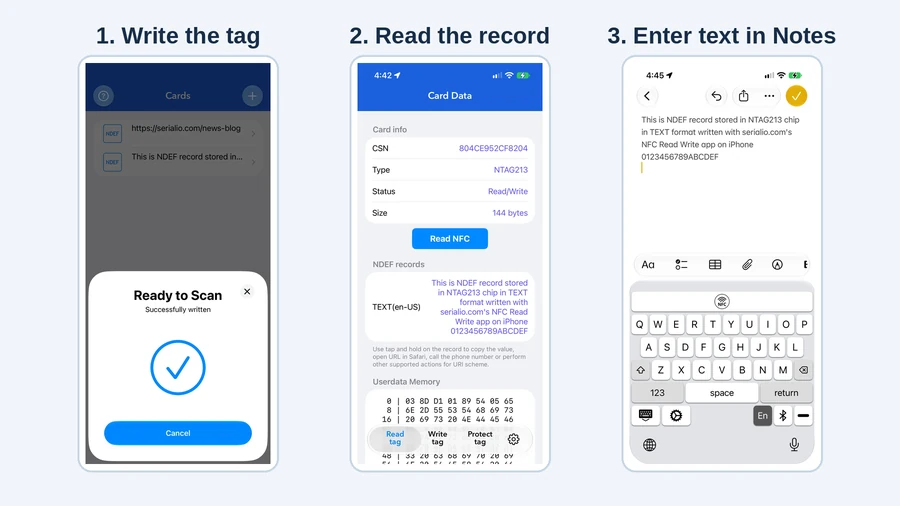
Write an NFC tag, verify the NDEF record, and enter the text in Apple Notes.
Use NFC Read Write by Serialio to write and read NFC tags with the iPhone’s built-in NFC reader. Write an NDEF Text record to an NTAG213 tag, then scan it again to confirm what was saved. With SerialMagic Keys for iOS, you can also enter the scanned text into Apple Notes or another app that accepts the custom keyboard.
What you’ll need is a compatible iPhone, NFC Read Write, and a writable NDEF-compatible NFC tag with enough room for your record. The App Store lists iOS 16.4 or later for NFC Read Write. An NTAG213 works well for a short asset ID, a location code, or a short URL. Install SerialMagic Keys separately for the keyboard workflow. Need NTAG213 in standard CR80 badge size? Need a tiny NTAG213 chip?
NDEF stands for NFC Data Exchange Format. Use a Text record when the value should be read as plain text, such as ASSET-1042. Choose a URI record when the tag should contain a link, such as a product page or an equipment manual.
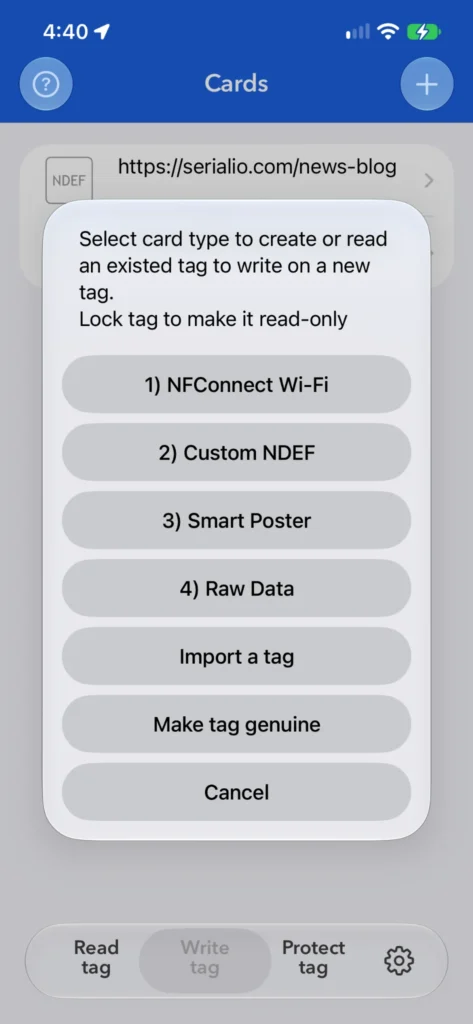
Open NFC Read Write and tap Write tag. On the Cards screen, tap + and choose Custom NDEF.
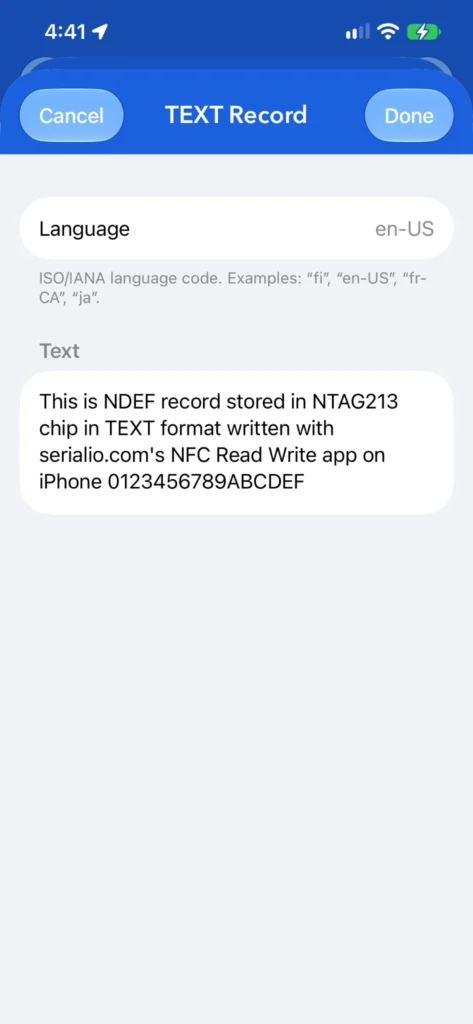
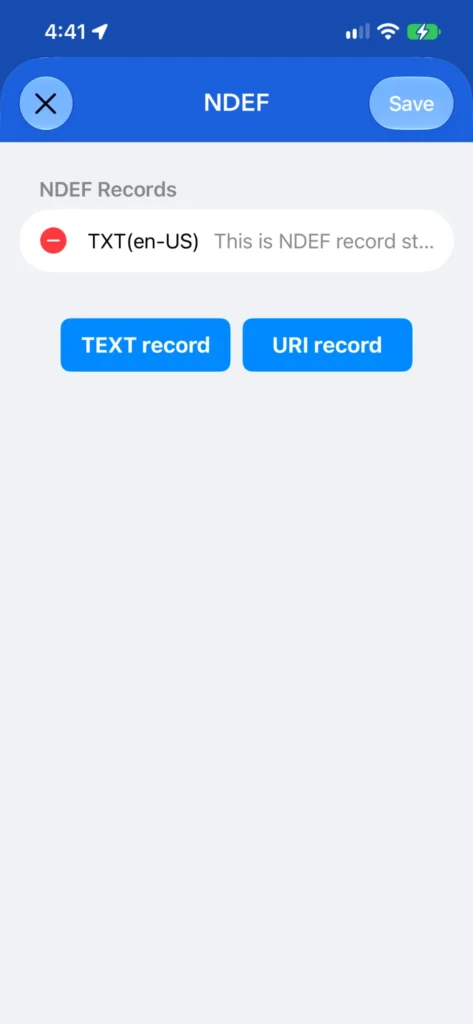
Tap TEXT record. Enter the value you want to store, tap Done, then tap Save on the NDEF screen.
Open the card type menu and choose Custom NDEF.
Enter the text you want to store, then tap Done.
Save the record to your Cards library.
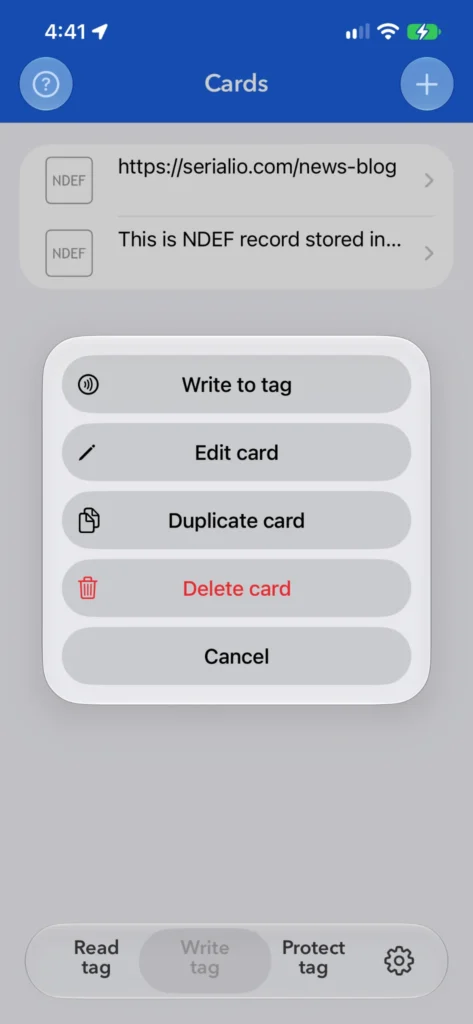
Tap the saved card in Cards and select Write to tag.
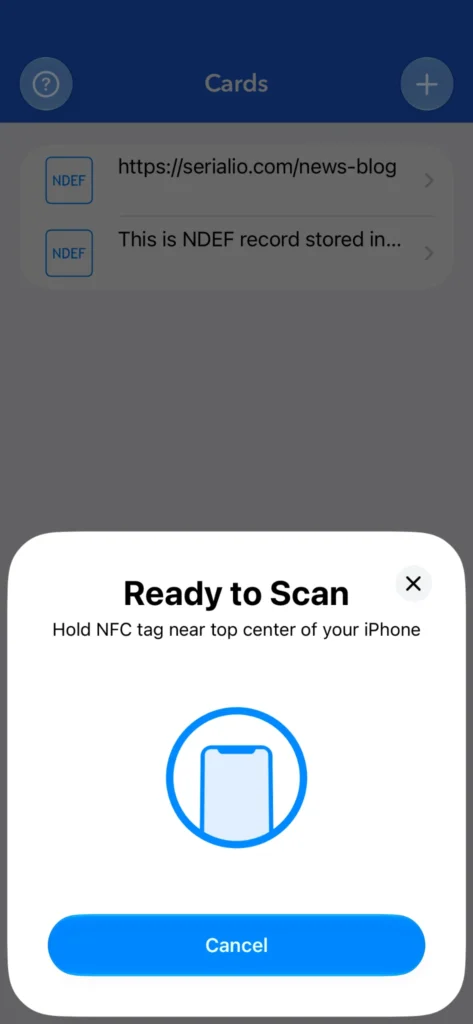
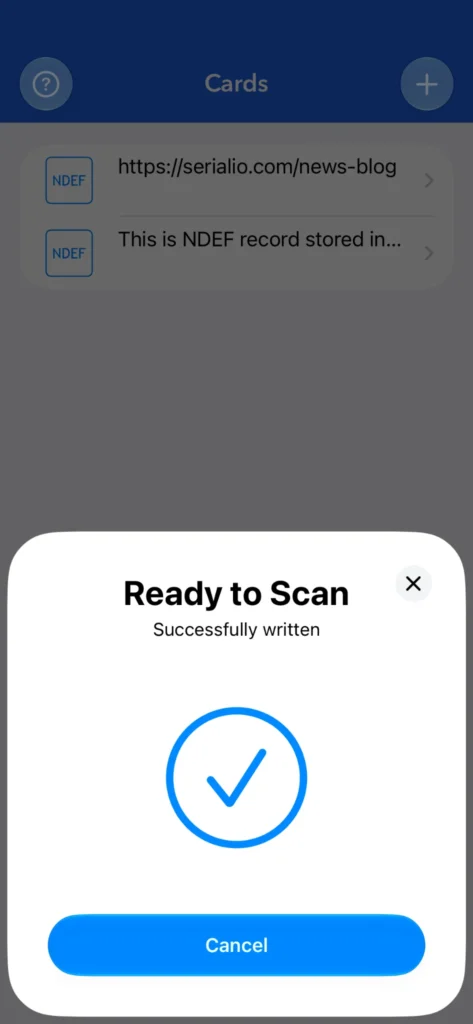
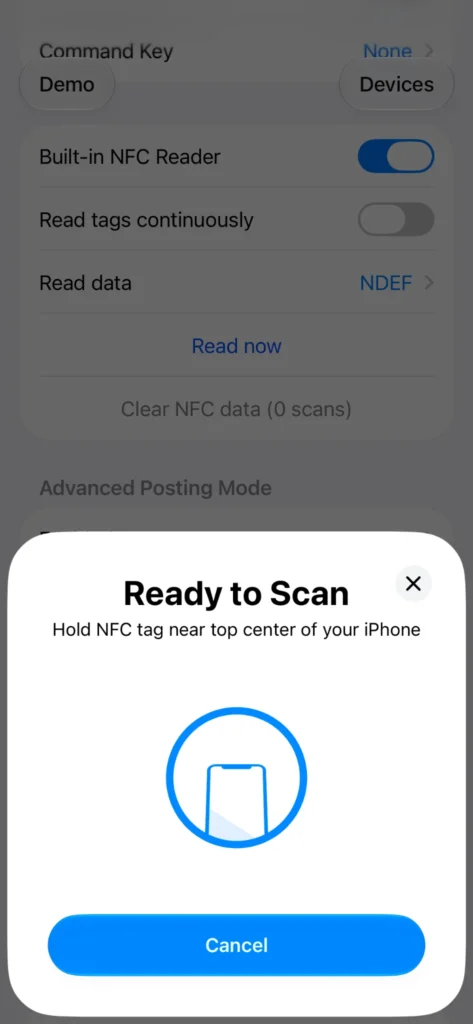
When the iPhone displays Ready to Scan, hold the tag near the top center of your iPhone. Keep it in place until you see Successfully written.
Open the saved card and select Write to tag.
Hold the tag near the top center of your iPhone.
Wait for Successfully written.
The saved card stays in the app’s Cards library. Open it again to write the same record to another tag, or use Edit card or Duplicate card to prepare a variation.
How to read and verify the NFC tag
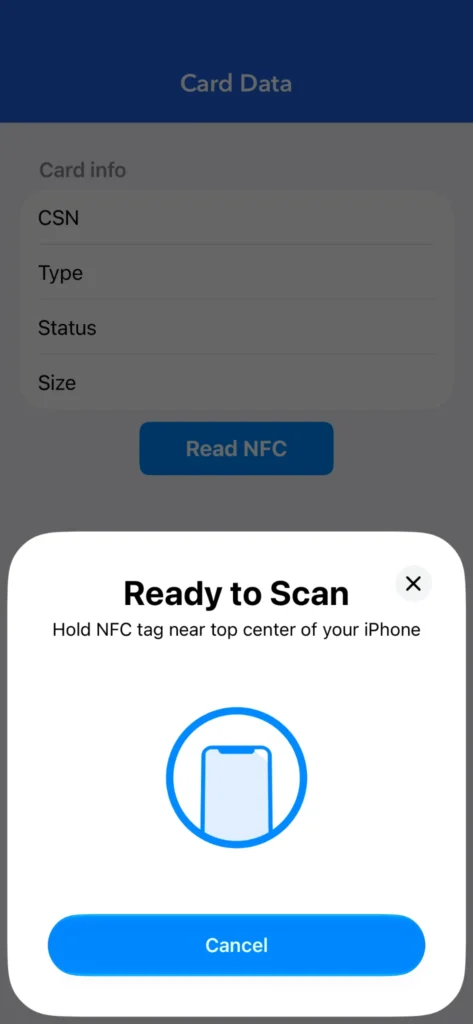
In NFC Read Write, tap Read tag, then Read NFC.
Hold the same tag near the top center of your iPhone.
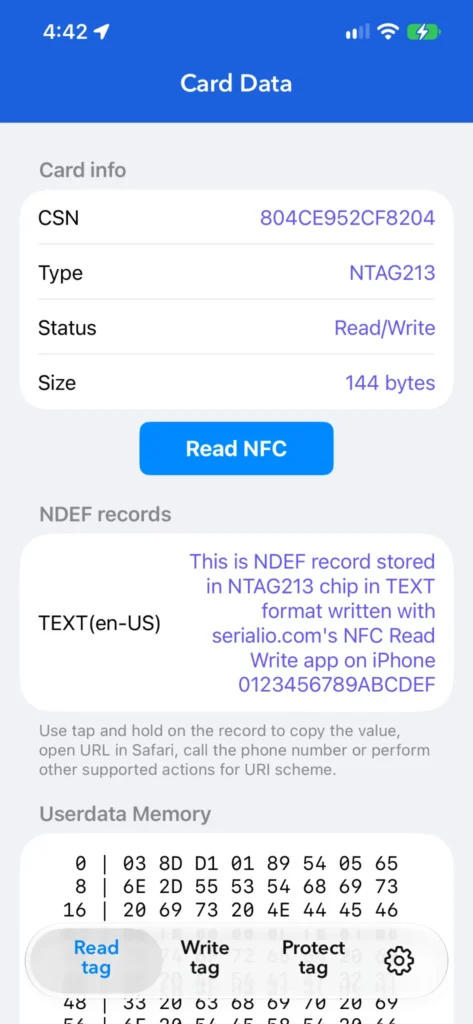
On Card Data, find NDEF records and check the displayed text against what you saved.
Open Read tag and tap Read NFC to scan again.
Check the stored text under NDEF records.
The example tag is an NTAG213 with Read/Write status. CSN is the chip’s serial number. The value you programmed appears separately in the Text record under NDEF records.
How to read very small NFC tags
If a tiny tag is hard to read, hold it near the center of the iPhone’s top back edge and try removing a thick case. In Serialio’s test of 4.5 × 1.8 mm NFC tags, the NTAG213 PCB tag read at about 2 mm and the ICODE SLIX PCB tag at about 9 mm on the three iPhone models tested. Read range depends on the tag’s antenna, chip, and phone.
When to lock a programmed NFC tag
Once you verify the stored text or link, use Protect tag → Lock tag → Lock in NFC Read Write if you need the tag to stay read-only. Treat the lock as permanent and leave tags writable if you plan to update or reuse them. Follow the step-by-step guide to locking NFC tags on iPhone for the scan and confirmation screens.
How to enter NFC tag text as keystrokes with SerialMagic Keys
SerialMagic Keys can send the NDEF text from a tag to the cursor as keyboard input. In the screenshots it fills an Apple Notes note. The same workflow can fill an asset ID field in an inspection form or a cell in a spreadsheet app that supports custom iOS keyboards. The destination app only needs to accept the keyboard in the target field.
Install SerialMagic Keys and open iPhone Settings → General → Keyboard → Keyboards → Add New Keyboard. Select SerialMagicKeys, then open its keyboard settings and turn on Allow Full Access. See the SerialMagic Keys keyboard setup guide.
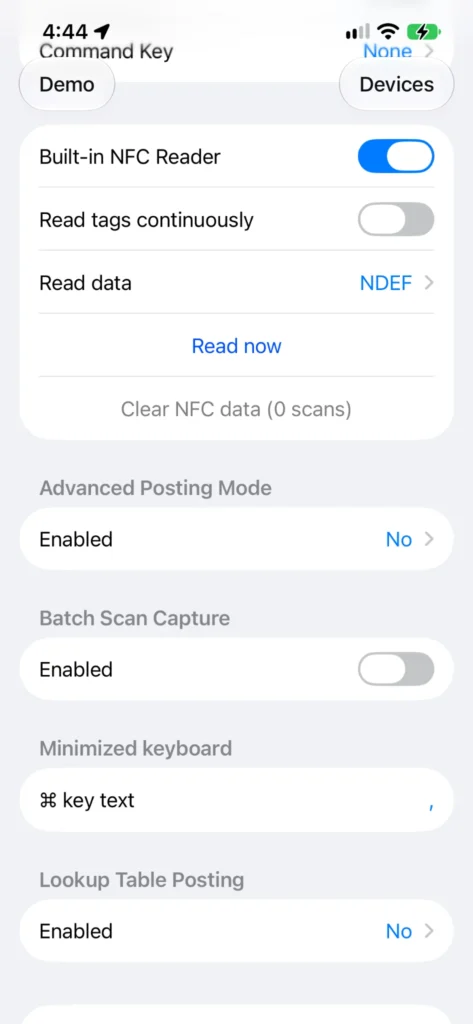
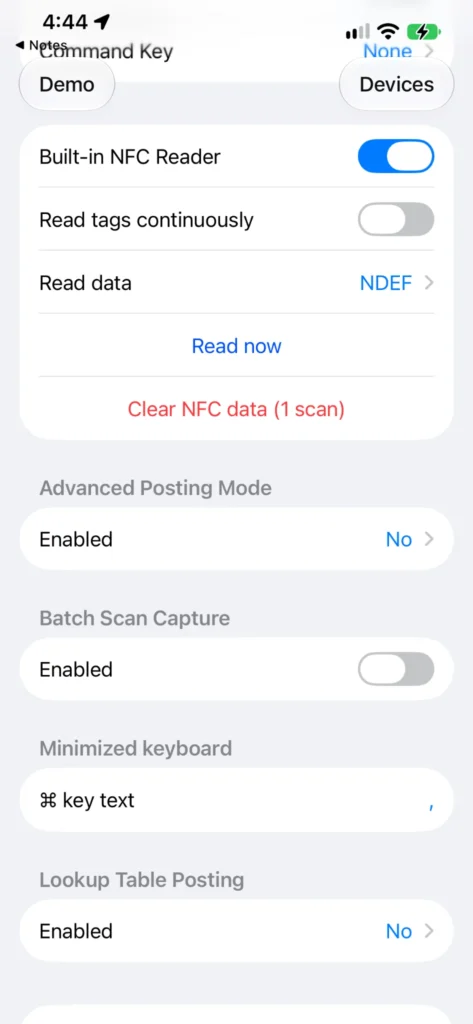
In the SerialMagic Keys app, turn on Built-in NFC Reader and set Read data to NDEF.
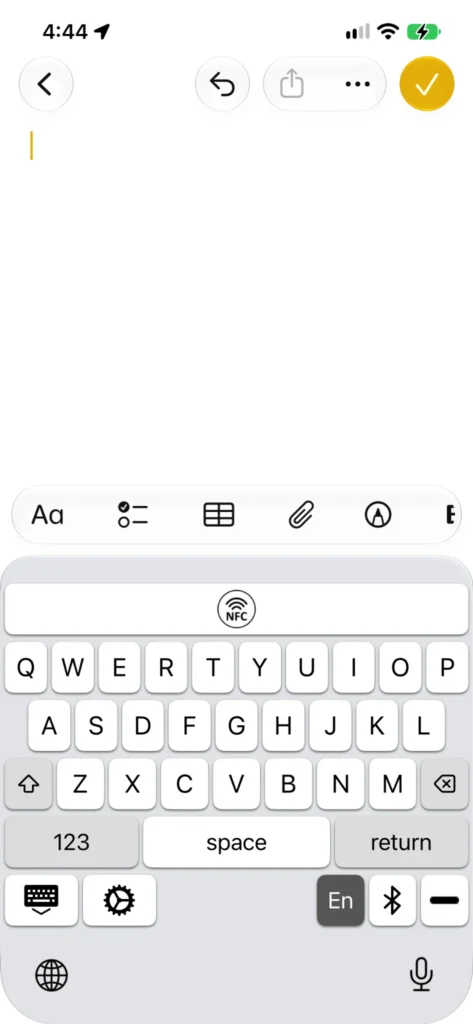
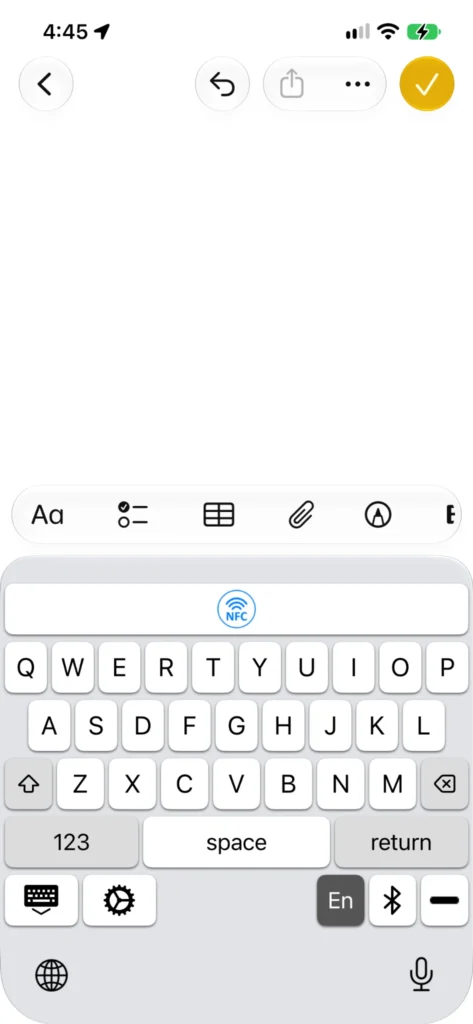
Open the destination app and put the cursor in the field. Hold the globe key and select SerialMagic Keys. Tap its NFC button, then scan the tag at the iPhone’s NFC prompt.
Enable the built-in NFC reader and select NDEF.
Tap the NFC button in the active SerialMagic Keys keyboard.
Scan the tag with the iPhone’s built-in reader.
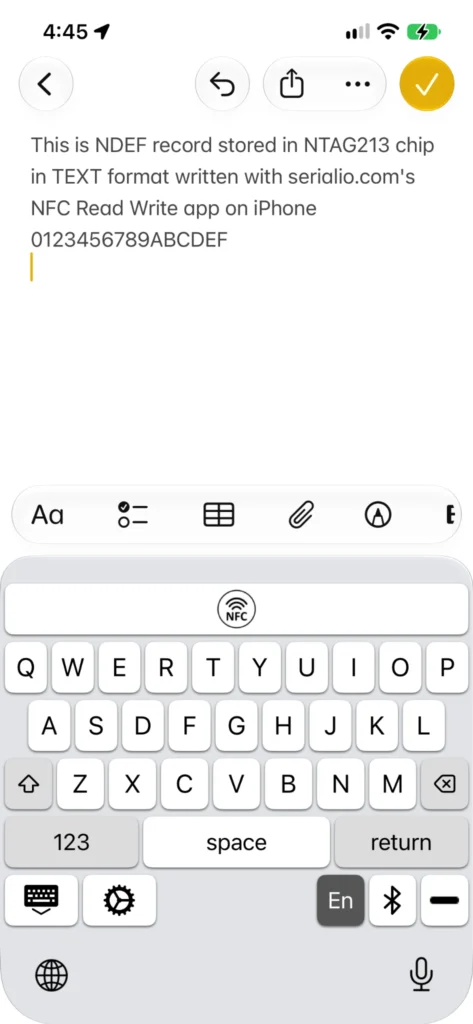
Return to the destination app and tap the NFC button again. The queued text appears at the cursor.
The tag read is queued in SerialMagic Keys.
Return to your text field and tap the NFC button again.
The tag’s text appears in Notes at the cursor.
The Serialio guide to posting NFC readings as keystrokes also covers sending the chip serial number. Apple’s secure password fields and apps that block third-party keyboards use the system keyboard. The SerialMagic Keys App Store listing includes built-in NFC reading as an in-app purchase.
Publish NFC scans to an MQTT broker
NFC Read Write can send scans from the iPhone’s built-in NFC reader to a configured MQTT broker. Each JSON message includes the chip serial number (CSN) and the NDEF data when present. The MQTT Support in-app purchase is for workflows that send reads to a backend or IoT system. See how to publish NFC scans over MQTT from an iPhone.
What else can NFC Read Write write?
The Write tag menu includes Custom NDEF, Smart Poster, Raw Data, and Import a tag. For a web link, use a URI record. For a system that expects its own byte format, use Raw Data with a supported tag. Import a tag brings data from an existing tag into the app so you can write it to another compatible tag.
NFConnect Wi-Fi and Make tag genuine belong to Serialio’s NFConnect Wi-Fi setup. The separate NFConnect WiFi app lets visitors join a network by scanning a configured tag. Use encrypted NFConnect records when you want to keep the password from being readable by other NFC apps. See the NFConnect Wi-Fi setup guide for compatible tags and encryption options.
NFC Read Write frequently asked questions
Can I program an NFC tag with just an iPhone?
Yes. NFC Read Write uses the built-in NFC reader on a compatible iPhone. You need a supported, writable tag with enough memory for your data.
Why won’t my NFC tag write?
Scan it using Read tag and check its status and size under Card info. A locked, read-only tag cannot be rewritten. If the tag has too little room for your NDEF record, shorten the content or use a compatible tag with more memory. Hold the tag near the top center of the phone until the write confirms.
Can I scan an NFC tag into a form on iPhone?
Yes. Select NDEF in SerialMagic Keys, scan the tag, and tap the NFC button again in the form to insert the text. The form field must accept the SerialMagic Keys keyboard.