
Why iOS onscreen keyboard disappears when USB reader plugged in
When you connect a wired USB RFID/NFC reader, barcode scanner, or other accessory that works like a USB keyboard, your iPad or iPhone treats it as a physical keyboard. In USB HID keyboard mode, a reader sends scanned data as keystrokes, and the onscreen keyboard may stop appearing when you tap a text field.
Your workflow needs both inputs. At a check-in desk, for example, you might scan a badge and then type a visitor’s name or add a note. The setting enables the onscreen keyboard while the USB device stays connected.
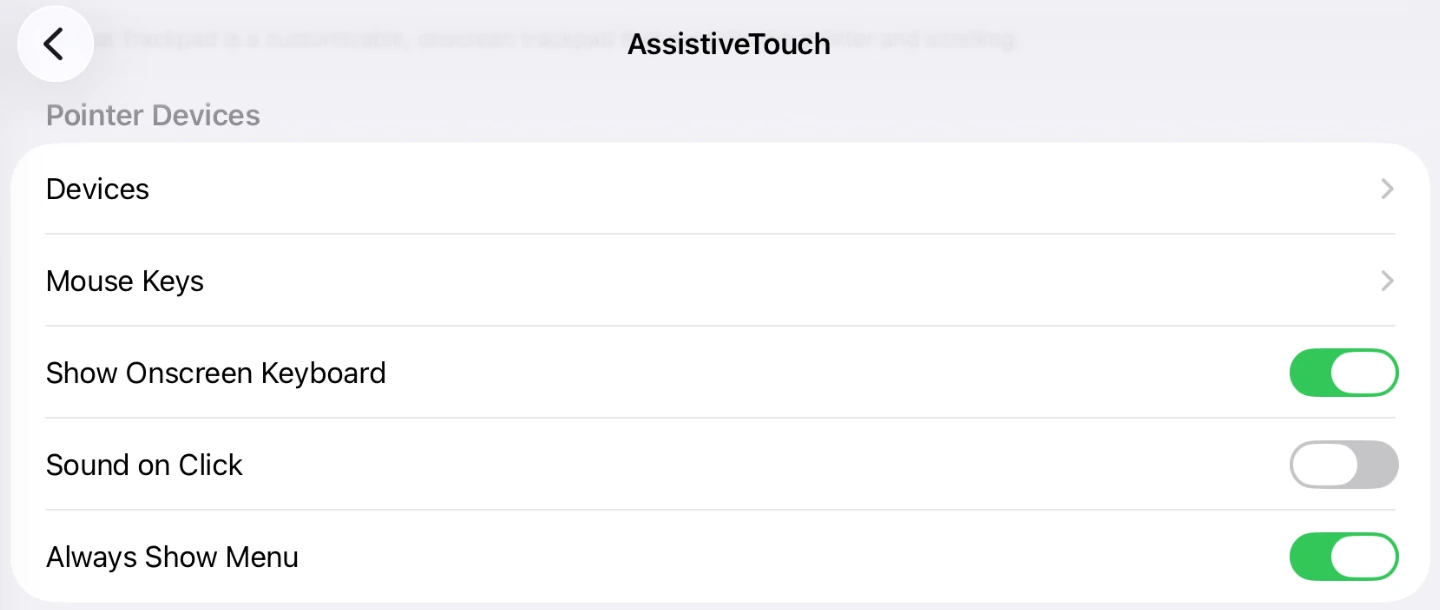
To show the onscreen keyboard on an iPad or iPhone with a wired USB scanner connected, go to Settings → Accessibility → Touch → AssistiveTouch. Turn on AssistiveTouch, scroll to Pointer Devices, and turn on Show Onscreen Keyboard. Then open Notes or your work app and tap an editable field.
Turn on the onscreen keyboard in AssistiveTouch
Keep your USB scanner or reader connected in keyboard mode. The screenshots show an iPad. Apple documents the same AssistiveTouch settings path on iPhone.
1. Open Accessibility and tap Touch
Open Settings, tap Accessibility, then choose Touch under Physical and Motor.

2. Open AssistiveTouch
Tap AssistiveTouch near the top of the Touch settings. You can open the row while it shows Off.
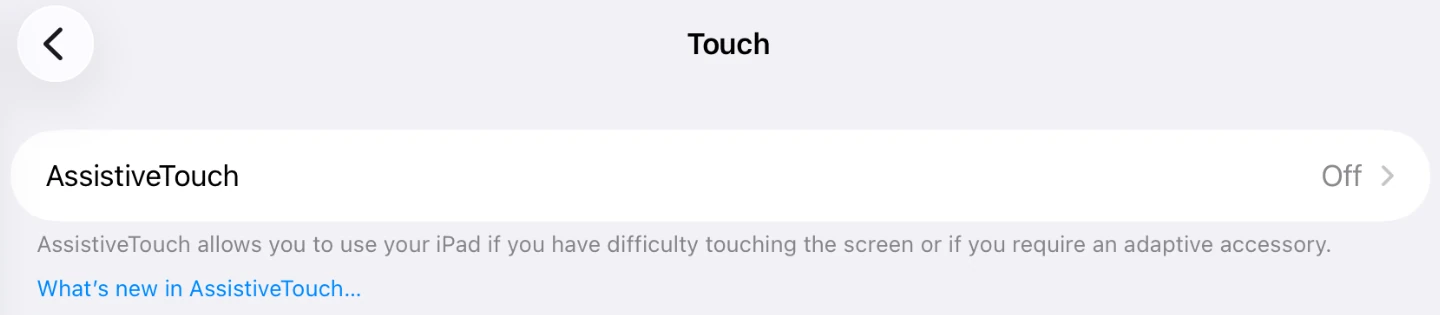
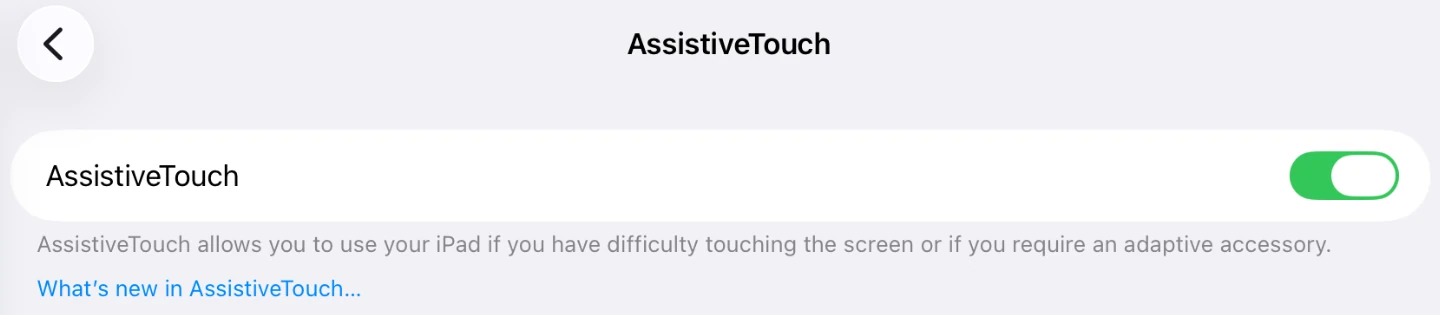
3. Turn on AssistiveTouch
Turn on the main AssistiveTouch switch at the top of the screen.
4. Turn on Show Onscreen Keyboard
Stay in AssistiveTouch and scroll down to Pointer Devices. Turn on Show Onscreen Keyboard.
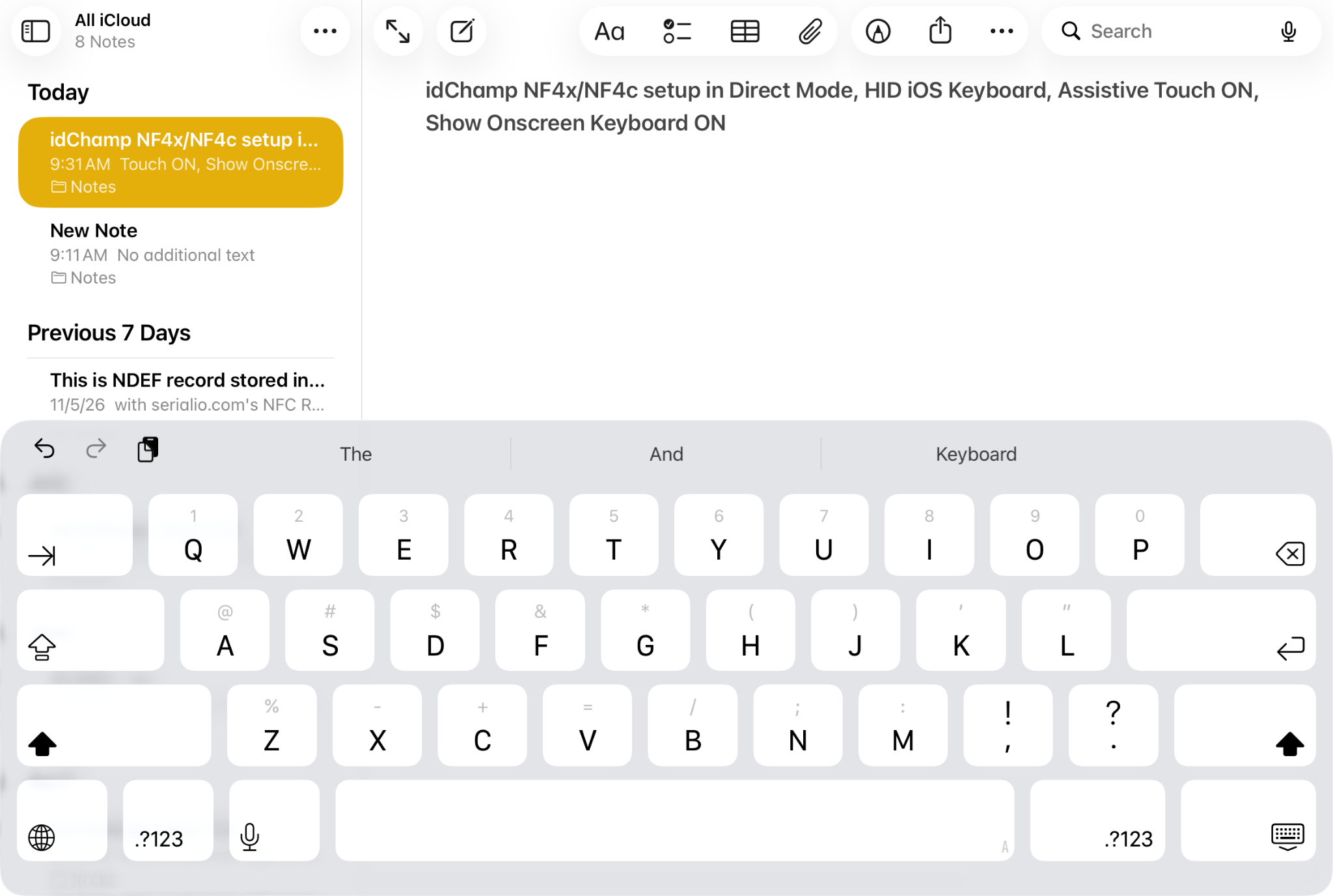
Test typing and scanning in Apple Notes
- With the USB device still connected, create a blank note and tap in the note body.
- When the onscreen keyboard appears, type a short word such as Test, then add a space.
- With the cursor still in the note, scan a known barcode or present a test RFID badge. Check that the expected value appears after the text you typed.
The iPad screenshots show the setup with an idChamp® NF4x/NF4c reader configured for Direct Mode (HID keyboard). Once both inputs work in Notes, repeat the test in the field your staff uses for inventory, point of sale, or check-in.
What to check if the keyboard or scanner still fails
- The scan appears in Notes, but the onscreen keyboard stays hidden
- Check that both AssistiveTouch and Show Onscreen Keyboard are on, then tap the note body again. If your iPad displays a keyboard shortcut button in the bottom bar, tap it and choose Show Keyboard when that option is available.
- The onscreen keyboard works, but a scan enters no text in Notes
- Check the scanner’s manual for USB HID Keyboard mode. Unlock the iPad or iPhone, reconnect the device, and try again. Use a cable or adapter that carries USB data. If you see a power warning, use an adapter or powered hub supported by your setup.
- Typing and scanning both work in Notes, but fail in the work app
- Try a field that accepts typed text, such as search or manual entry. Some screens use a dedicated scan control or a custom keypad. If a scan jumps to the next field or submits early, check whether the reader appends Enter or Tab after each scan.
Frequently asked questions
Can I type and scan without unplugging the USB device?
Yes, when the device sends USB HID keystrokes and the app is focused on an editable field that supports both inputs. The touchscreen keyboard and the scanner can enter text into the same field.
Does this work with both USB-C and Lightning?
The AssistiveTouch setting uses the same path on iPad and iPhone. For the scanner to send data, use a compatible cable or adapter for the port on your device. For a USB-A scanner and a Lightning device, check whether your setup supports a Lightning to USB camera adapter and needs external power.
Can I hide the onscreen keyboard again?
Use the keyboard’s dismiss control when it’s available. To restore the usual external-keyboard behavior, turn off Show Onscreen Keyboard in AssistiveTouch.
Related resources
- Apple Support guide to AssistiveTouch on iPad
- Apple Support guide to AssistiveTouch on iPhone
- Apple guidance for connecting wired accessories
- Serialio’s iPad RFID readers and apps guide
Need help getting your USB reader working with an iPad or iPhone? Contact Serialio.